
Add agent credentials
Configure one authentication method for the runtime your project will use. Saved workspace credentials are write-only.
Before you begin
Choose Codex, OpenCode, or Claude Code and confirm that its account can use the required models and tools. Never paste a credential into a task, documentation, source control, screenshot, terminal log, or support message.
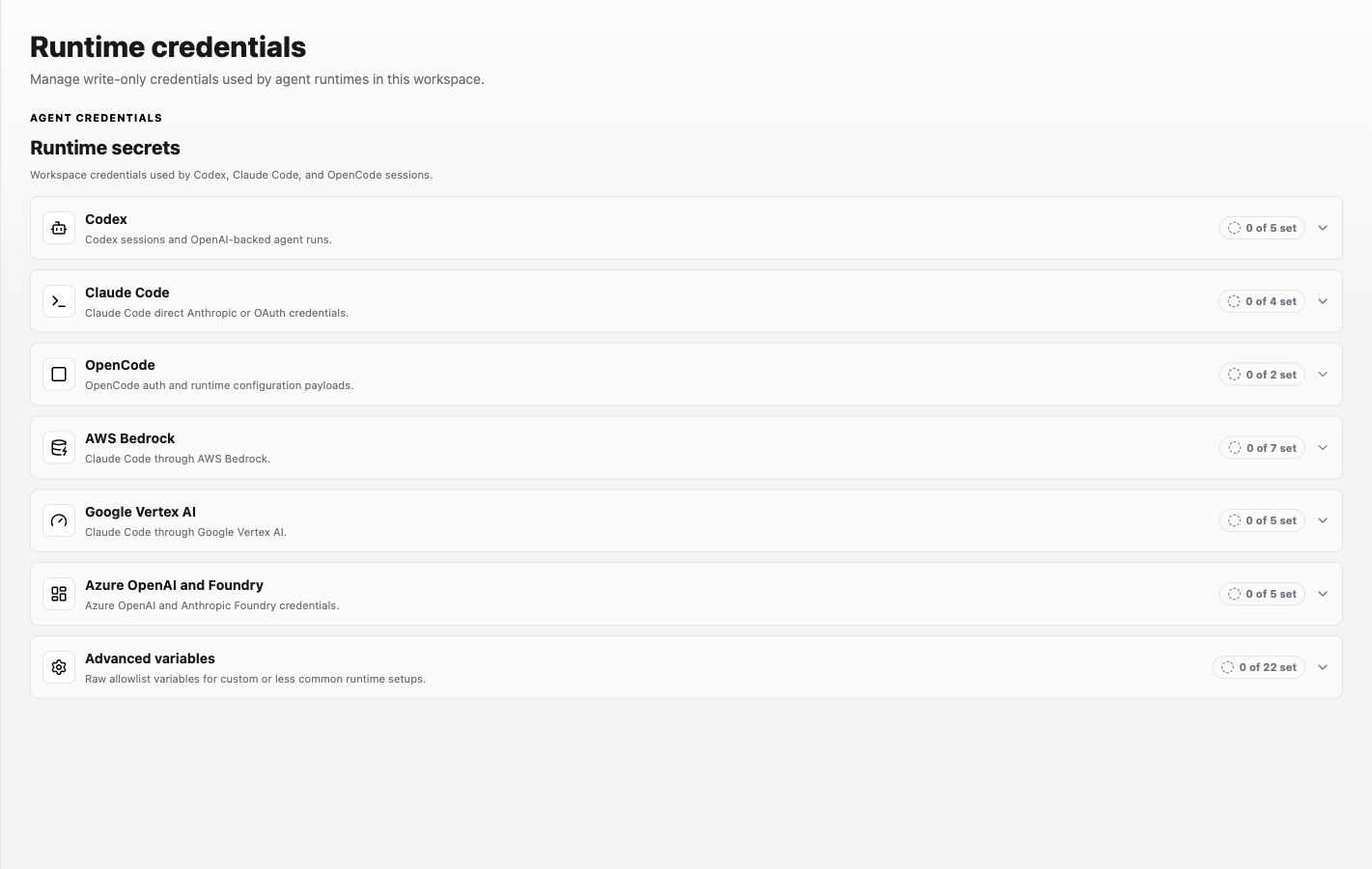
Open Settings > Runtime > Runtime credentials. Expand the row that matches the task’s Agent selection.
The provider account or credential you select and save is customer-owned. Labor0 does not mark up the coding-agent provider cost charged under that account or plan; this ownership and cost boundary applies whether the agent runs locally or in a hosted environment.
Authenticate the runtime
- Codex: use a ChatGPT sign-in or
CODEX_API_KEY/OPENAI_API_KEY. A supported local sign-in may use$CODEX_HOME/auth.json, or~/.codex/auth.jsonwhenCODEX_HOMEis unset. - OpenCode: run
opencode auth login. Its default local credential source is~/.local/share/opencode/auth.json. - Claude Code: use
ANTHROPIC_API_KEY, or create an OAuth token withclaude setup-tokenand save it asCLAUDE_CODE_OAUTH_TOKEN.
Use the method approved by your organization and keep local credential files readable only by the account that runs the tool.
Save the workspace credential
- In Runtime credentials, select the matching runtime.
- For Codex or OpenCode, use the available JSON import action and select the supported credential file shown above. Do not select a project configuration file.
- For an API key or Claude Code token, enter the matching write-only value.
- Save and confirm only the credential name, runtime, and configured count.
Add a Custom Codex provider
Workspace administrators can also configure one Custom Codex provider in Settings > Runtime > Runtime credentials. Enter a provider name, its complete HTTPS Responses base URL, and a bearer API key, then select Save provider. The API key is write-only: Labor0 does not show it after saving, so enter a new key whenever you replace the provider.
Keep the complete URL path. For example, a Cloudflare AI Gateway setup can use a gateway-specific HTTPS path such as https://gateway.example.com/v1; an OpenRouter setup can use its Responses-compatible HTTPS endpoint. Labor0 validates the saved URL locally but does not contact the provider, resolve DNS, or test reachability while saving.
Your Custom Codex provider account, API key, and provider charges are customer-owned. Labor0 does not supply that account or add a markup to the provider charges under it.
After saving, the panel shows Configured. If a field needs correction, update the highlighted detail and save again. If settings changed elsewhere, review the current details and enter the API key again. If the panel is temporarily unavailable or you do not have permission, wait and retry or ask a workspace administrator.
Expected result
After saving a runtime credential, its runtime row changes from 0 of … set to a nonzero count without displaying the saved value. After saving a Custom Codex provider, the provider panel shows Configured; the runtime credential count can remain unchanged. Run one bounded task with Codex to confirm that the provider account, model access, and project settings agree.
If import reports an unreadable, malformed, or unsupported file, authenticate the runtime again and select the correct source. Do not weaken file permissions or inspect the credential through a shared tool.
Changing workspace runtime credentials requires the permission shown in Labor0. If Runtime credentials is unavailable, ask a workspace administrator.
If authentication later fails, verify the selected runtime and provider account, create a replacement credential, update Labor0, test it, and revoke the old value. Rotate immediately after suspected exposure.